
The following instructions explain how to collect a SAML trace with a browser extension in Chrome or Firefox that you can send to ISKME Support to help us troubleshoot your single sign on (SSO) issue.
Instructions for Chrome
Download and install the SAML Chrome Panel extension.
Open a new browser tab.
Click the Chrome menu bar and go to More Tools > Developer Tools.
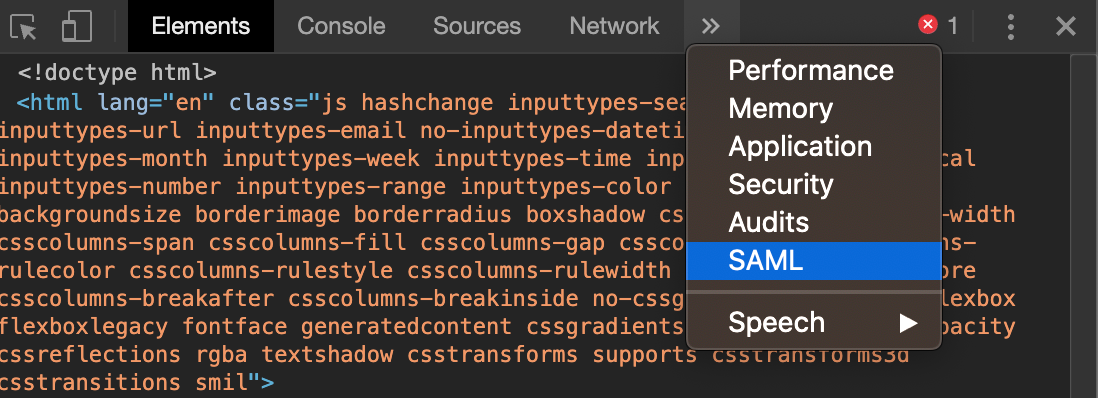
Click the double arrow icon next to Network and select SAML:
 -
-Replicate the SAML login issue. The SAML assertions should begin showing up in the Developer Tools window.
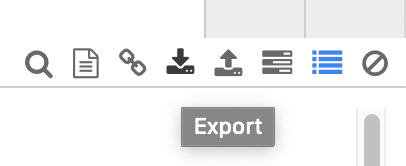
Once the issue has been replicated, click the down arrow icon to export the results to a JSON file:
Send the exported JSON file to ISKME as an email attachment.
Instructions for Firefox
Download and install this Firefox extension.
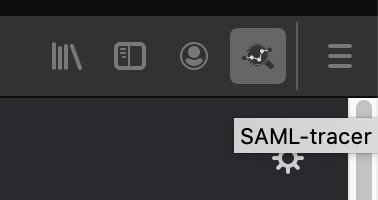
Click the SAML tracer tool icon in the Firefox extensions tool bar to open the SAML tracer window:
Open a new browser tab and replicate the SAML login issue.
Once the issue has been replicated, click the pause icon in the SAML tracer window to pause the trace.
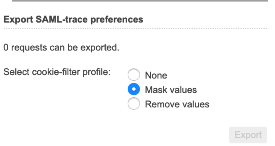
Click Export and select "Mask values" for the cookie-filter preferences:
Send the exported JSON file to ISKME as an email attachment.